Introduction
In everyday development, isn’t there a surprising amount of hassle between the moment you decide to write code and when the editor actually opens on your target project? You dig through folders in Finder, cd in the terminal, and open the folder in VSCode. Each one takes only a few seconds, but this small friction becomes a barrier to getting started and creates breaks in your concentration.
To bring this friction close to zero, I combine Raycast with VSCode Project Manager. When I press ⌘+Shift+; (a shortcut I assigned personally), Raycast launches, and just by searching for a project name and pressing Enter, that project opens in VSCode. Without taking my hands off the keyboard, I can start coding in a few seconds.
What I use
The VSCode Project Manager extension
The extension for registering and managing projects is alefragnani’s Project Manager. Its basic function is quickly switching between registered projects from the command palette, but this time I use that registration information from the Raycast side.
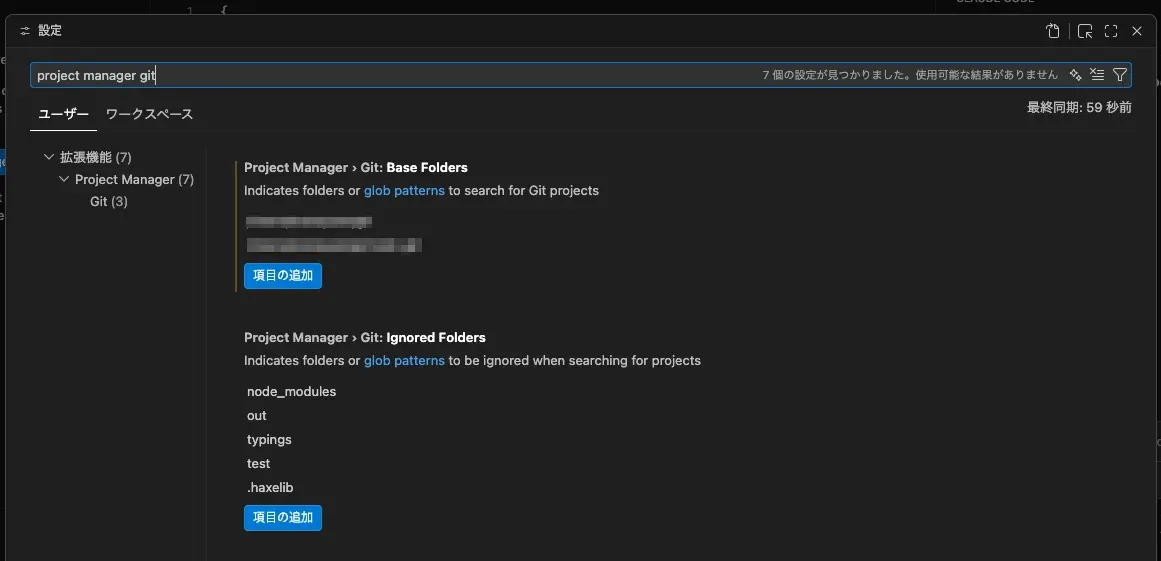 You can use it by registering the folders you want auto-recognized under “Base Folders.”
You can reference multiple directories, and folders with a hierarchical structure can also be targeted.
You can use it by registering the folders you want auto-recognized under “Base Folders.”
You can reference multiple directories, and folders with a hierarchical structure can also be targeted.
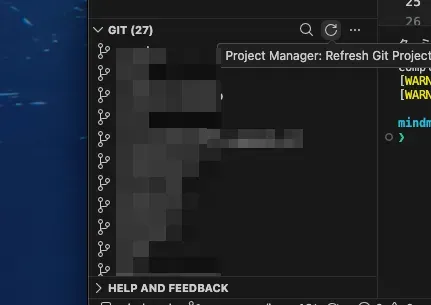 When git projects increase inside a folder, clicking the refresh button in the panel that appears when you open the extension reloads them, so Raycast can recognize them too.
The Raycast VSCode Project Manager plugin
This plugin lets you search for and open, from the Raycast side, the projects registered in VSCode Project Manager.
 https://www.raycast.com/MarkusLanger/vscode-project-manager
The mechanism is simple: Raycast loads the list of projects that Project Manager manages. So as long as you’ve set up Base Folders on the VSCode side, they’re reflected as-is in Raycast’s search results. There’s no need to re-register the projects again on the plugin side.
Setup
Getting started takes these three steps.
- Install the Project Manager extension in VSCode and register your development folders under the aforementioned Base Folders
- Install the VSCode Project Manager plugin in Raycast
- Assign a hotkey of your choice to the plugin’s launch command
I assign ⌘+Shift+; to the third one, the hotkey. This is a completely personal setting, so anything easy to press that doesn’t clash with others works. Just select the command on Raycast’s settings screen and register it in the Hotkey field.
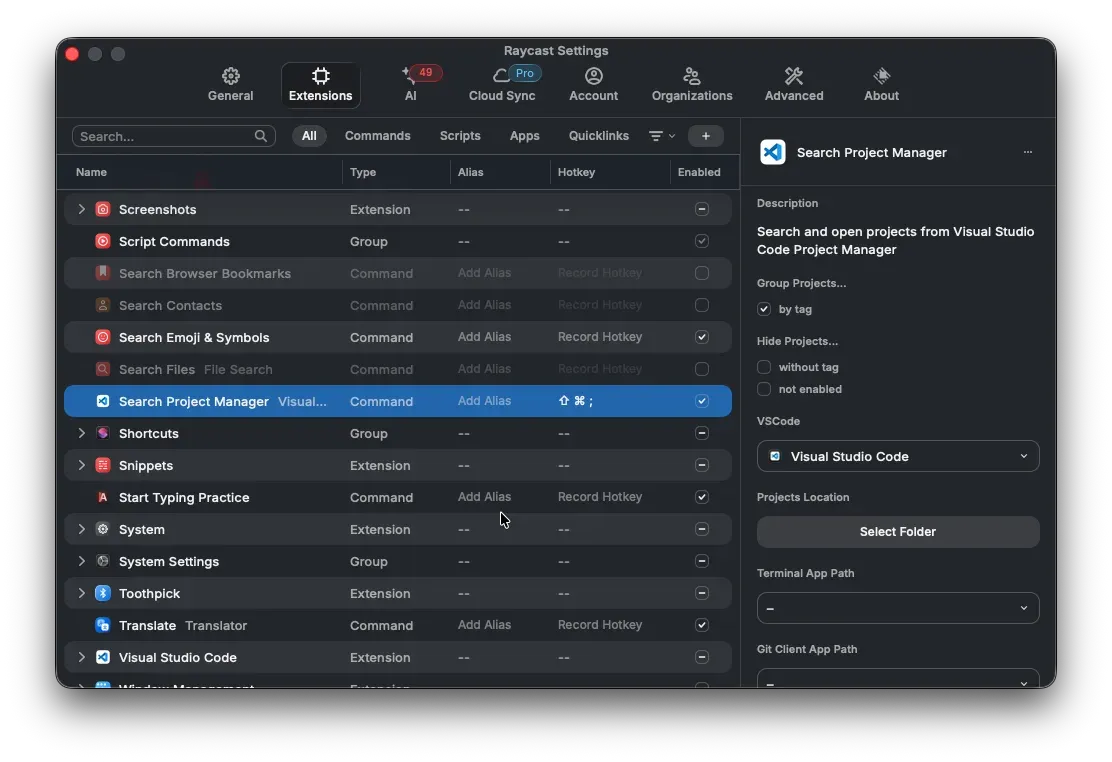
How it actually feels to use
The usage is very simple. Launch Raycast with ⌘+Shift+”;”, type part of the project name to narrow down the candidates, and press Enter. That alone starts up VSCode with the project already open.
As shown below, everything from the shortcut to search to launch connects into a single flow.

I’ve used this workflow for several years now, and I can’t let go of it. The effect is greater the more you move between multiple repositories daily, and I feel the speed of getting started is on a completely different level with it versus without it.
Summary
Just removing the friction of the casual action of “opening a project” makes getting into coding astonishingly lighter. The combination of Raycast and Project Manager is a prime example.
Even small automation adds up into a big difference when it’s an action you repeat many times every day. If it caught your interest, please give it a try.