When I use a mouse at home and the trackpad while out with my MacBook, the scroll direction differs :japanese_goblin:
(Logicool and others handle this in software.)
So to switch the scroll direction I had been going to [System Preferences] -> [Trackpad] -> [Scroll direction: Natural], but it turns out I can automate this with AppleScript.
Environment
macOS Monterey 12.2
Steps
- Write a script in AppleScript that switches the scroll direction
- Export the code as an application
- Set up a program in the “Shortcuts.app” that launches the exported application so it can run with one click
Script to Switch Scroll Direction
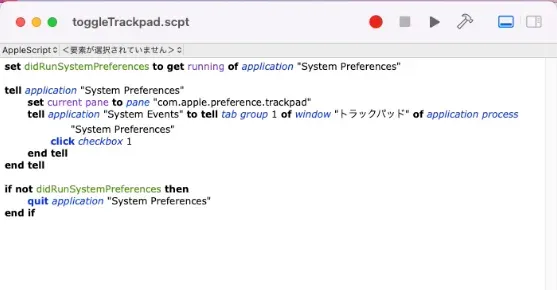
set didRunSystemPreferences to get running of application "System Preferences"
tell application "System Preferences"
set current pane to pane "com.apple.preference.trackpad"
tell application "System Events" to tell tab group 1 of window "トラックパッド" of application process "System Preferences"
click checkbox 1
end tell
end tell
if not didRunSystemPreferences then
quit application "System Preferences"
end if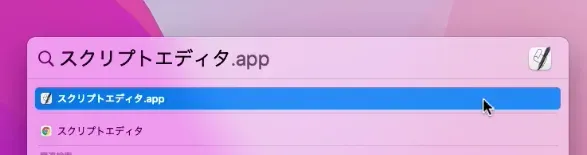 Open Spotlight, type “Script Editor”, and press Enter.
Create a new document and paste the code above.
Open Spotlight, type “Script Editor”, and press Enter.
Create a new document and paste the code above.
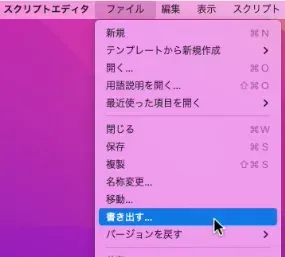
Exporting
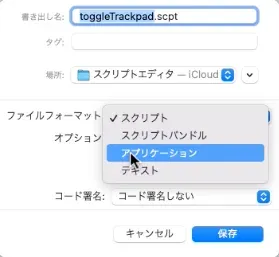
Click [File] -> [Export] in the menu bar.
 In the dialog that appears, set the save location to [Applications], set the [File Format] to
 Application, and click [Save].
Permission Setup
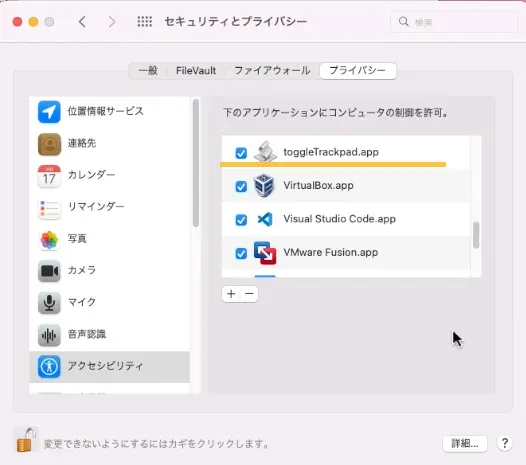
Go to [System Preferences] -> [Security & Privacy] -> [Accessibility], press the + button, and add the application you just exported.
One-Click Launch
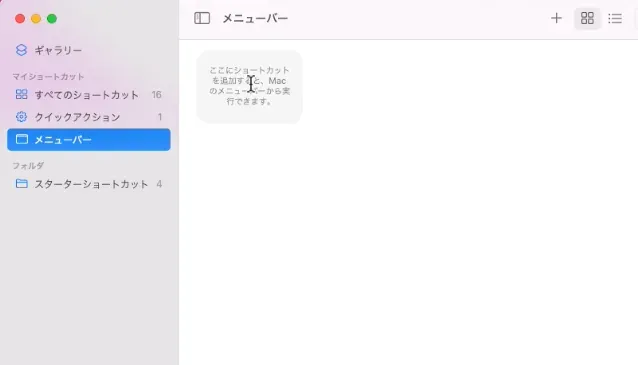
Open Shortcuts.app and press + in the [menu bar].
 Click [Scripting] on the right and drop in [Run AppleScript].
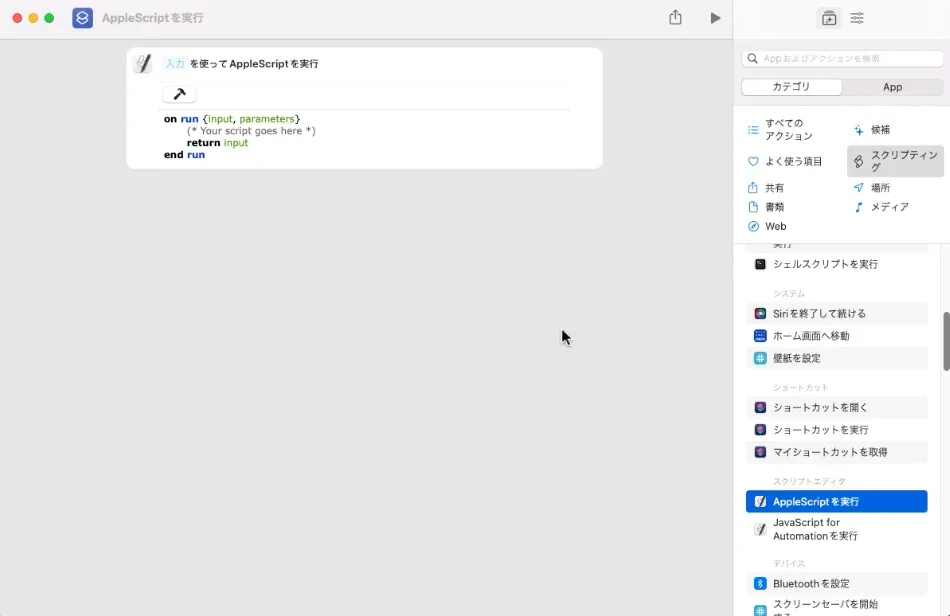 Paste the following code (
"toggleTrackpad" is the name of the application you exported).
tell application "toggleTrackpad"
	activate
end tell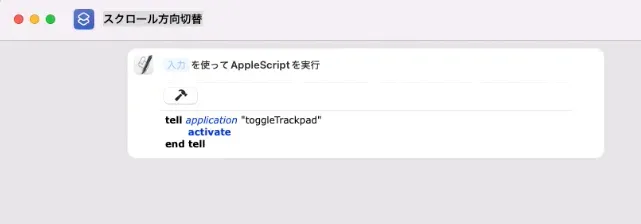
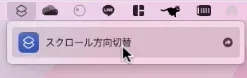
Check
If it has been added to the menu bar, you’re all set.
Wrapping Up
Enjoy your comfortable MacBook life.
Sites I Referenced
https://qiita.com/satosystems/items/8fff5b2313ecd6f81af3 https://zenn.dev/rot1024/articles/mac_keyboard_layout_monterey